Retro Shooter VR - Support & FAQ

Need help with Retro Shooter VR?

Find answers to common questions or reach out to us if you need further assistance.

Welcome to Retro Shooter VR

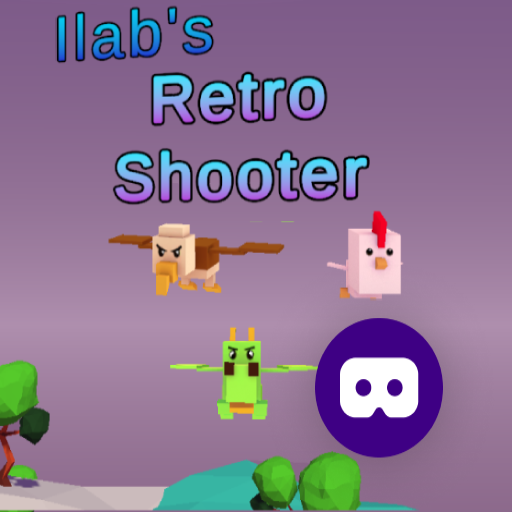
Welcome to Retro Shooter VR, your portal to exhilarating virtual reality shooting action! This guide provides technical assistance and answers to frequently asked questions to ensure you have the best possible experience.

Quick Start Guide

  1. Install JioDive: Ensure the JioDive application is installed on your Android device. Retro Shooter VR is designed to function exclusively within the JioDive ecosystem.
  2. Connect VR Headset: Connect your compatible VR headset to your Android device following the headset's instructions.
  3. Launch Retro Shooter VR: Open the Retro Shooter VR application through JioDive.
  4. Calibration: Follow the in-app calibration prompts to optimize the VR experience for your headset and play space. Accurate calibration is crucial for precise aiming.

Frequently Asked Questions

Configuration & Setup

Q: What are the minimum system requirements for Retro Shooter VR?

A: Retro Shooter VR requires a compatible Android device with JioDive support and a VR headset. Refer to the JioDive app store page for detailed compatibility information.

Q: Do I need a Bluetooth controller?

A: While not strictly required, a Bluetooth controller is recommended for an enhanced gameplay experience. The in-app controls are designed for VR head control aiming.

Q: How do I adjust the graphics settings?

A: Graphics settings can be adjusted within the app's settings menu. Lowering the graphics settings may improve performance on less powerful devices.

Q: What permissions does Retro Shooter VR require and why?

A: The app requires camera permission for VR tracking and potentially storage permission for saving high scores or game data. These permissions are essential for core functionality.

Operational Guide

Q: How do I aim and shoot in the game?

A: Use your VR headset to look at the targets and the in-game controls will translate your head movements into aiming. Press the designated button on your controller (if connected) to fire.

Q: What are the different game modes?

A: Retro Shooter VR offers two modes: Arcade Mode, focused on high scores, and Timed Mode, a timed shooting challenge. Each mode provides a unique gameplay experience.

Q: How do I navigate the main menu?

A: Use your VR headset's gaze-based navigation or a connected controller to select options within the main menu.

Troubleshooting & Fixes

Q: The game is laggy or stuttering. What can I do?

A: Ensure that Battery Saver mode is turned OFF and close any unnecessary applications running in the background. Lowering the graphics settings within the app may also improve performance.

Q: My aim is inaccurate.

A: Verify that your VR headset is properly calibrated and that you have adequate space to move around. Ensure there are no obstructions interfering with the tracking system.

Q: The game is not detecting my controller.

A: Check that your controller is properly paired with your Android device via Bluetooth and that the in-game controller settings are configured correctly.

System Requirements

Operating System: Android 9.0 or higher

Processor: Quad-core processor or higher

RAM: 4GB of RAM or higher

VR Headset: Compatible with JioDive VR platform

Known Issues & Roadmap

Current Considerations: We are actively working on optimizing performance for a wider range of devices and improving the stability of the game. Future updates may include additional game modes and features based on player feedback.

Common FAQ

Submit a Support Ticket

If you cannot find the answer to your question in the FAQ above, please fill out the form below and our team will get back to you shortly.
    Pixel Perfect Pursuit | praveenojha.com